Antifraud — Conversion Scoring
Conversion Scoring is an anti-fraud system that evaluates the quality of your traffic by analyzing how well it converts. Instead of just counting clicks, it scores each conversion based on engagement, fraud signals, and behavioral patterns — helping risk managers identify which traffic sources bring real value and which are low-quality or fraudulent.
How Scoring Works
UCLIQ analyses multiple factors to assign a score to each conversion. These are evaluated in real time when a conversion is matched to its click, before any payout is finalized.
Heuristic Checks
The scoring engine runs approximately 15 heuristic checks against every conversion. Key signals include:
-
OS Mismatch — Browser-reported OS differs from fingerprint-detected OS (e.g., "Win10" browser on "Windows 7 or 8" OS).
-
Duplicate Fingerprint — Same browser fingerprint hash seen multiple times on the same click.
-
Same IP Conversions — Multiple conversions originating from the same IP address.
-
Timezone Mismatch — Fingerprint timezone differs from GeoIP timezone.
-
Cloud/VPS ASN — Traffic originating from data centre IPs (DigitalOcean, AWS, etc.).
-
Language Mismatch — English Accept-Language header in a non-English country.
-
Router/Proxy — OS fingerprint indicates NAT or proxy hiding.
-
Motivated Traffic — Referrer or User-Agent contains social media markers (kik.com, snapchat).
-
Touch Support — Android device with incomplete or empty touch support data (suggests an emulated browser).
-
Winsocks Detection — Over 90% of a publisher's recent transactions come from Windows (suggests uniform bot farm).
-
Connection Type — "Corporate" connection type flagged (corporate IPs rarely convert for consumer offers).
Each heuristic adds to a cumulative risk score. The system does not use machine learning — it relies on deterministic rules that cover enough dimensions to make simultaneous gaming expensive.
Score Propagation
When a single click generates multiple conversions (e.g., a lead followed by a sale), the risk score is copied from the first conversion to subsequent ones. Two fields are recalculated per transaction: duplicate fingerprint count and same-IP conversion count.
Automatic anti-fraud
Conversion auto-delay
You can set conversion to be automatically delayed, if the risk score exceeds limits configured either on System level in Control Center, at offer level or at publisher level. Delayed conversions are indicated in the conversion scoring panel as require manual confirmation to be credited to publishers or decline. In case of decline of delayed conversion - it won't be visible to publisher, unless it was previously confirmed.
Conversion auto-decline
Similarly to auto-delay, you can configure conversions to auto-decline based on risk score threshold. Auto-declined conversions won't be announced to publishers. You can manually revert the auto-decline in the conversion scoring panel by re-confirming it.
Conversion Scoring Panel
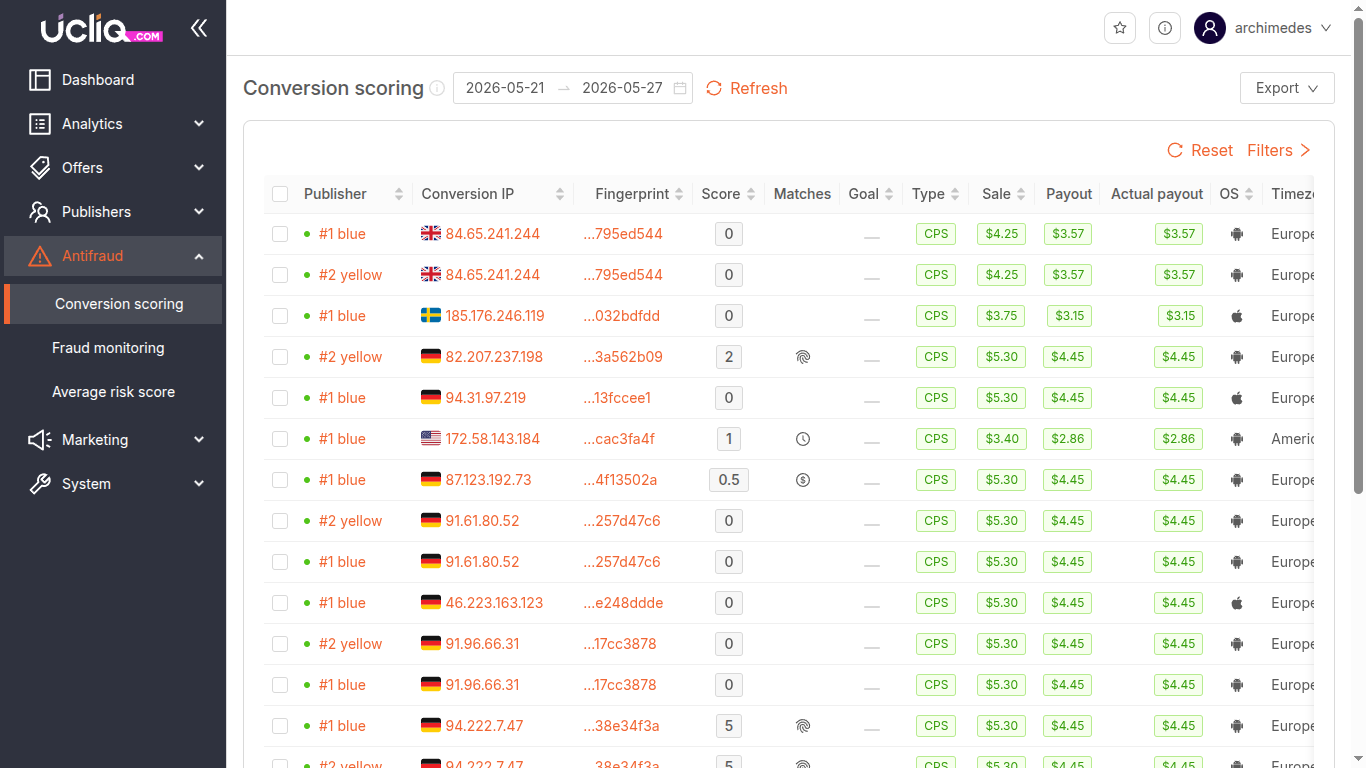
The main panel shows all conversions for a selected time period with their quality assessment and fraud check status.
Filters and search
-
Period — Today, Last 7 days, Last 30 days, or custom date range
-
Search — Search by publisher name
-
Refresh — Reload data
Additional filters available in the filter panel allow to further filter the list of conversions you need to display.
Conversion List Columns
-
Publisher — Publisher username with link to publisher profile
-
Conversion IP — IP address of the click origin with country flag and copy button
-
Fingerprint — Unique browser fingerprint hash with copy button
-
Score — Risk score assigned to the conversion
-
Matches — Detected fraud patterns with risk type icon
-
Goal — The conversion goal
-
Type — Conversion type (sale, lead, etc.)
-
Sale — Conversion revenue amount
-
Payout — Payment generated for the publisher
-
Actual payout — Final payout after adjustments
-
OS — Operating system of the click origin with OS icon
-
Timezone — Time zone of the click origin
-
Date — Conversion date and time
-
Actions — Confirm or decline the conversion
Click any conversion record to open the detail dashboard.
Conversion Dashboard
Shows click, conversion and received advertiser's postback details.
Conversion States
Conversions in the system fall into two states:
Processed
These conversions have been automatically processed. The publisher's payment is either registered or added to the campaign balance. To cancel a processed conversion, use the Decline action — this reduces the publisher's balance and generates a "decline" transaction.
Cancellation reasons:
-
None — No specific reason
-
Fraud — Conversion canceled due to spam
-
Motivated — Conversion canceled due to fake/incentivised traffic
-
Duplicate — Conversion canceled due to a duplicate offer
-
Advertiser decline — Conversion canceled by the advertiser
-
Test — Conversion canceled due to a test offer
Held (Pending)
These conversions are waiting for a risk manager decision. No payment has been generated yet. They are marked with a clock icon.
-
Confirm — If the conversion is deemed legitimate, confirming it triggers payment to the publisher or adds it to the campaign balance.
-
Cancel — If canceled, no payment is made. The publisher will not be notified about the cancellation.
Undoing a Decline
If a decline was made by mistake, apply a Confirm action to it. This will create a new payment to the publisher for the original amount.